
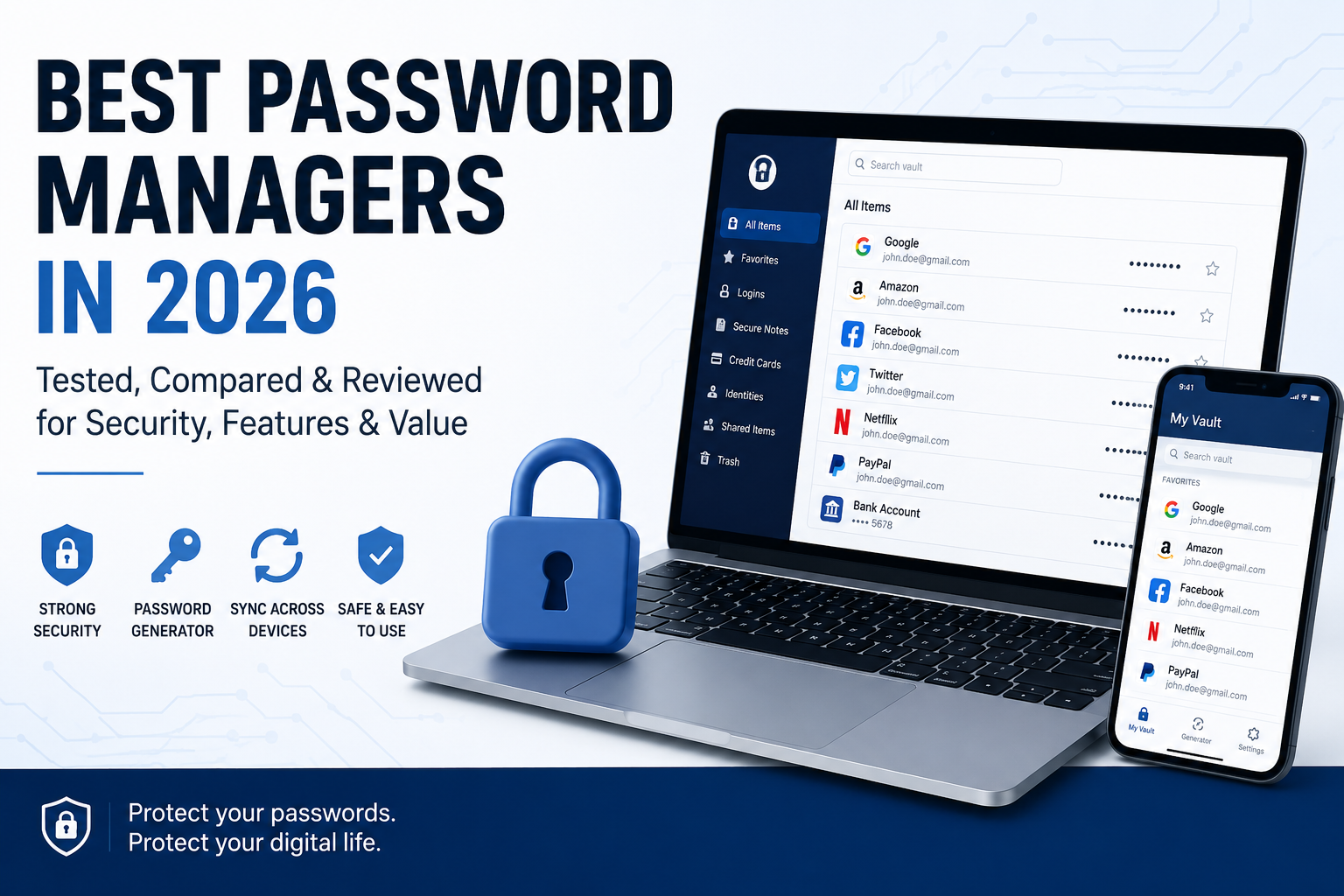
Best password managers in 2026 are more important than ever as online security continues to become a bigger concern. Data breaches, phishing attacks, and credential theft continue to rise, making strong password protection essential for both individuals and businesses.
Unfortunately, many people still reuse the same password across multiple websites. If just one account is compromised, cybercriminals can potentially access banking apps, email accounts, cloud storage, social media profiles, and even work systems.
This is where password managers become indispensable.
A password manager securely stores your login credentials, generates strong unique passwords for every account, automatically fills login forms, and protects sensitive information using advanced encryption technologies.
After researching the leading solutions available today, we’ve compared security, ease of use, pricing, features, platform compatibility, and overall value to help you choose the right password manager.
Quick Comparison
| Password Manager | Best For | Free Plan | Starting Price |
|---|---|---|---|
| 1Password | Overall Best | No | From $2.99/month |
| Bitwarden | Best Free Option | Yes | From $10/year |
| NordPass | Best Security Features | Yes | From $1.99/month |
| Dashlane | Best VPN Integration | Limited | From $4.99/month |
| Keeper | Best Business Security | No | From $2.92/month |
| RoboForm | Best Budget Choice | Yes | From $0.99/month |
Why You Can Trust PicksGenius
Our recommendations are based on extensive research, feature comparisons, pricing analysis, independent security audits, customer feedback, and real-world usability. We continuously update our rankings to reflect new features, pricing changes, and security improvements.
In this guide to the best password managers in 2026, we compare the leading options based on security, features, ease of use and value.
How We Tested Password Managers
Every password manager included in our guide to the best password managers in 2026 was evaluated using the following criteria:
- Security architecture
- Encryption standards
- Multi-factor authentication
- Cross-platform compatibility
- Browser extensions
- Password generator quality
- Autofill accuracy
- Password sharing
- Passkey support
- Dark web monitoring
- Emergency access
- Ease of use
- Pricing
- Customer support
- Overall value
Each category contributed to the final score.
These are our picks for the best password managers in 2026 based on security, features, usability and overall value.
1Password – Best Overall Password Manager in 2026
⭐⭐⭐⭐⭐ Overall Rating: 9.8/10
Best for: Families, professionals, remote teams, and anyone who wants the best combination of security, usability, and premium features.We reviewed the best password managers in 2026 based on security, features, pricing and ease of use.
Overview
1Password has consistently remained one of the most trusted password managers in the cybersecurity industry. While many competitors focus on offering free plans or niche features, 1Password prioritizes what matters most: exceptional security, ease of use, and a polished experience across every device.
Whether you’re managing five passwords or five thousand, 1Password makes organizing and protecting sensitive information remarkably simple. Beyond storing passwords, it can securely save credit cards, identity documents, software licenses, Wi-Fi credentials, secure notes, passport information, and even SSH keys.
Its intuitive interface, combined with advanced security architecture, makes it an excellent choice for both beginners and experienced users.
Among the best password managers in 2026, 1Password stands out for its strong security and ease of use.
When comparing the best password managers in 2026, security and usability are two of the most important factors.
Key Features
- Military-grade AES-256 encryption
- Zero-knowledge security architecture
- Secret Key protection for an additional layer of security
- Unlimited password storage
- Unlimited devices
- Password generator
- Passkey support
- Secure password sharing
- Watchtower security dashboard
- Travel Mode
- Two-factor authentication
- Browser extensions for Chrome, Edge, Firefox, Brave and Safari
- Mobile apps for Android and iOS
- Desktop apps for Windows, macOS and Linux
Security
Security is where 1Password truly separates itself from many competitors.
Unlike most password managers that rely solely on a master password, 1Password introduces a unique Secret Key. This additional cryptographic key is generated locally on your device and is required alongside your master password to decrypt your vault.
Even if someone somehow discovered your master password, they still couldn’t access your vault without your Secret Key.
All encryption happens locally on your device before data reaches 1Password’s servers. The company cannot view your passwords because of its zero-knowledge architecture.
Additional security features include:
- AES-256 encryption
- PBKDF2 key derivation
- Secure Remote Password protocol (SRP)
- Two-factor authentication
- Biometric login
- Passkey support
- Regular independent security audits
For users concerned about privacy, this approach provides excellent protection against both cybercriminals and server-side attacks.
Watchtower Security Dashboard
One of the standout features is Watchtower.
Rather than simply storing passwords, Watchtower actively analyzes your vault and alerts you when:
- Passwords are weak
- Passwords are reused
- Passwords appear in known data breaches
- Websites support two-factor authentication
- Accounts can be upgraded to passkeys
- Login credentials should be updated
This proactive approach helps users improve their security over time instead of only storing passwords. Choosing from the best password managers in 2026 depends on your security needs, budget and preferred features.
User Experience
One reason many professionals recommend 1Password is its outstanding user experience.
Installation takes only a few minutes, and importing passwords from Chrome, Edge, Firefox, LastPass, Bitwarden, Dashlane, or other password managers is straightforward.
The browser extension performs exceptionally well by automatically detecting login forms and suggesting the correct credentials almost instantly.
The mobile apps are equally polished, allowing users to unlock their vault using fingerprint recognition or Face ID.
Everything feels responsive, modern, and carefully designed.
Password Sharing
Sharing passwords securely with family members or coworkers is surprisingly simple.
Instead of sending passwords through email or messaging apps, users can securely share credentials directly through encrypted vaults.
Families can organize passwords into shared categories such as:
- Streaming services
- Online banking
- Home Wi-Fi
- Shopping accounts
- Utility providers
Businesses can also create separate vaults for departments, making access management significantly easier.
Travel Mode
Travel Mode is a feature rarely found elsewhere.
When crossing international borders, users can temporarily remove sensitive vaults from their devices.
Once arriving safely, the vaults can be restored with a single click.
This feature provides additional protection when traveling internationally.
Performance
During everyday use, 1Password performs exceptionally well.
Autofill is fast and reliable, synchronization between devices is nearly instantaneous, and the applications remain stable even with thousands of stored credentials.
Whether you’re logging into websites, mobile apps, or desktop software, the experience remains smooth and consistent.
Pros
✔ Outstanding security architecture
✔ Secret Key provides extra protection
✔ Beautiful interface
✔ Excellent browser extensions
✔ Fast synchronization
✔ Secure password sharing
✔ Passkey support
✔ Travel Mode
✔ Great customer support
✔ Available on all major platforms
Cons
✘ No permanent free plan
✘ Slightly more expensive than some competitors
✘ Advanced features may be unnecessary for casual users
Pricing
1Password offers several subscription options, including Individual, Family, Teams, and Business plans.
Although it doesn’t provide a permanent free plan, every paid subscription includes premium security features, continuous updates, and excellent cross-platform support.
Considering the level of protection offered, the pricing represents strong value for users who prioritize security.
Who Should Choose 1Password?
1Password is ideal for:
- Individuals who want the highest level of security
- Families sharing online accounts
- Small businesses
- Remote teams
- IT professionals
- Privacy-conscious users
- Anyone switching from browser-based password storage. Our list of the best password managers in 2026 is based on security, features, pricing, usability and overall value.
Our Verdict
1Password remains the gold standard for password management in 2026.
Its combination of exceptional security, polished design, innovative features like Secret Key and Watchtower, and reliable performance makes it the best overall password manager for most users.
While the lack of a free plan may discourage some people, the premium experience easily justifies the subscription for anyone serious about protecting their digital life.
Overall Score: ⭐ 9.8/10
Bitwarden – Best Free Password Manager in 2026
⭐⭐⭐⭐⭐ Overall Rating: 9.6/10
Best for: Budget-conscious users, open-source enthusiasts, students, freelancers, and anyone looking for an excellent free password manager.
Overview
If you’re searching for a powerful password manager without paying a monthly subscription, Bitwarden is difficult to beat. Unlike many competitors that heavily restrict their free plans, Bitwarden includes an impressive range of features at no cost.
What truly sets Bitwarden apart is its open-source philosophy. Every major component of the software can be inspected by independent security researchers, increasing transparency and trust. Instead of asking users to simply trust the company, Bitwarden allows experts to verify its security practices through public code reviews and regular third-party audits.
Whether you’re storing a few passwords or managing thousands of accounts, Bitwarden delivers excellent performance, strong encryption, and reliable synchronization across all major platforms.
Key Features
- Unlimited password storage
- Unlimited devices (Free Plan)
- AES-256 encryption
- Zero-knowledge architecture
- Open-source software
- Password generator
- Secure notes
- Credit card storage
- Identity storage
- Passkey support
- Two-factor authentication
- Browser extensions
- Desktop applications
- Mobile apps
- Secure password sharing
- Emergency access (Premium)
Security
Security is the biggest reason millions of users trust Bitwarden.
Every vault is encrypted locally before being uploaded to Bitwarden’s servers, ensuring that only the user can decrypt stored information. The company follows a strict zero-knowledge model, meaning employees cannot access customer passwords.
Bitwarden uses:
- AES-256-bit encryption
- PBKDF2 key derivation
- Argon2 support
- End-to-end encryption
- Two-factor authentication
- Biometric authentication
- Passkey compatibility
Because Bitwarden is open source, vulnerabilities are often discovered and fixed quickly by the security community.
Regular independent security audits further strengthen confidence in the platform.
Free Plan
This is where Bitwarden truly shines.
Unlike many competitors that limit users to one device or only a handful of passwords, Bitwarden’s free plan includes:
- Unlimited passwords
- Unlimited devices
- Browser extensions
- Mobile applications
- Desktop applications
- Password synchronization
- Basic two-factor authentication
- Secure vault
For many users, the free version is more than sufficient for everyday use.
Premium Features
Users who upgrade to Premium unlock additional security tools, including:
- Advanced two-factor authentication methods
- Emergency access
- Encrypted file attachments
- Password health reports
- Vault health analysis
- Dark web monitoring
- Priority customer support
The Premium subscription is one of the most affordable in the password manager market while adding valuable features for security-conscious users.
User Experience
Bitwarden may not have the polished appearance of 1Password, but it offers a clean, functional interface that is easy to navigate.
Importing passwords from Chrome, Edge, Firefox, LastPass, Dashlane, Keeper, RoboForm, and other services takes only a few minutes.
Autofill works reliably on both desktop and mobile devices, while browser extensions quickly recognize login pages and suggest the correct credentials.
Although the interface focuses more on functionality than visual design, most users become comfortable with it very quickly.
Cross-Platform Compatibility
Bitwarden works almost everywhere.
Supported platforms include:
- Windows
- macOS
- Linux
- Android
- iPhone & iPad
- Chrome
- Edge
- Firefox
- Safari
- Brave
- Opera
Synchronization between devices is fast and generally takes only a few seconds.
Password Generator
Creating strong passwords is effortless.
Bitwarden includes a highly customizable password generator capable of generating passwords based on:
- Length
- Numbers
- Symbols
- Uppercase letters
- Lowercase letters
- Passphrases
This encourages users to create unique credentials for every website, dramatically improving overall security.
Pros
✔ Excellent free plan
✔ Unlimited devices
✔ Unlimited passwords
✔ Open-source software
✔ Regular security audits
✔ Strong encryption
✔ Affordable Premium plan
✔ Excellent cross-platform support
✔ Reliable autofill
✔ Passkey support
Cons
✘ Interface isn’t as polished as 1Password
✘ Fewer premium convenience features
✘ Family sharing tools are less intuitive
Pricing
Bitwarden offers one of the best values in the industry.
The free plan includes enough functionality for most users, while the Premium plan adds advanced security tools at a very affordable price.
Family and Business plans are also available for users who need shared password management and administrative controls.
Who Should Choose Bitwarden?
Bitwarden is an excellent choice for:
- Students
- Freelancers
- Small businesses
- Open-source supporters
- Budget-conscious users
- Families
- Anyone switching from browser password storage
1Password vs Bitwarden
Both services rank among the best password managers available, but they target slightly different audiences.
Choose 1Password if you want the most polished experience, premium features like Watchtower and Travel Mode, and are willing to pay for top-tier convenience.
Choose Bitwarden if you value transparency, open-source software, unlimited free usage, and outstanding value for money.
For many users, Bitwarden offers the best balance between affordability and security, making it one of the smartest choices available in 2026.
Our Verdict
Bitwarden proves that you don’t need an expensive subscription to protect your online accounts.
Its generous free plan, open-source foundation, excellent encryption, and reliable performance make it the best free password manager available today.
While its interface isn’t quite as refined as 1Password, the combination of security, transparency, and value makes Bitwarden an easy recommendation for individuals, families, and businesses alike.
Overall Score: ⭐ 9.6/10
NordPass – Best for Simplicity & Modern Security
⭐⭐⭐⭐⭐ Overall Rating: 9.5/10
Best for: Everyday users, families, remote workers, and anyone looking for a modern, intuitive password manager with excellent security features.
Overview
NordPass is developed by the team behind NordVPN, one of the most recognizable names in cybersecurity. Although it entered the password manager market later than some competitors, it has quickly become one of the strongest options thanks to its clean interface, modern security architecture, and excellent ease of use.
Unlike many older password managers that focus only on storing passwords, NordPass has evolved into a complete digital vault. In addition to passwords, it can securely store passkeys, payment cards, personal information, secure notes, Wi-Fi passwords, and important documents.
Its combination of simplicity and powerful protection makes it especially attractive for users who want strong security without dealing with a complex interface.
Key Features
- XChaCha20 encryption
- Zero-knowledge architecture
- Unlimited password storage
- Password Health dashboard
- Data Breach Scanner
- Email Masking
- Passkey support
- Secure password sharing
- Multi-factor authentication
- Biometric login
- Browser extensions
- Mobile apps
- Desktop applications
Security
Security is one of NordPass’s biggest strengths.
Instead of relying solely on the widely used AES-256 encryption algorithm, NordPass uses XChaCha20, a modern encryption algorithm recognized for its speed and strong security. While both AES-256 and XChaCha20 are considered highly secure, XChaCha20 offers excellent performance, particularly on mobile devices.
Like the other leading password managers in this guide, NordPass follows a zero-knowledge architecture. Your vault is encrypted locally before any data leaves your device, meaning even NordPass cannot access your stored passwords.
Additional security features include:
- XChaCha20 encryption
- Multi-factor authentication
- Biometric authentication
- Password Health analysis
- Data Breach Scanner
- Passkey support
- Independent security audits
For most users, these features provide a high level of protection against phishing attacks, password reuse, and data breaches.
Password Health
One feature that stands out is Password Health.
Instead of simply storing passwords, NordPass evaluates the quality of every password saved in your vault.
It highlights:
- Weak passwords
- Reused passwords
- Old passwords
- Passwords that should be updated
This helps users improve their overall online security with very little effort.
Data Breach Scanner
NordPass also includes a Data Breach Scanner, which monitors known security breaches and alerts you if your email address or credentials have appeared in leaked databases.
This allows users to react quickly by changing affected passwords before attackers can misuse them.
For anyone with dozens or hundreds of online accounts, this feature can save significant time and reduce security risks.
User Experience
One of NordPass’s greatest advantages is its clean and intuitive interface.
Even users who have never used a password manager before can start organizing passwords within minutes.
Importing passwords from Chrome, Firefox, Edge, Bitwarden, Dashlane, LastPass, and other services is simple, while browser extensions automatically detect login forms and fill credentials with minimal effort.
The desktop and mobile applications maintain the same modern design, creating a consistent experience across every device.
Cross-Platform Compatibility
NordPass supports virtually every popular platform:
- Windows
- macOS
- Linux
- Android
- iPhone & iPad
- Chrome
- Edge
- Firefox
- Safari
- Brave
- Opera
Synchronization is fast, allowing newly added passwords to appear on other devices almost instantly.
Password Sharing
Sharing passwords with trusted family members or colleagues is secure and straightforward.
Instead of sending sensitive information through email or messaging apps, users can securely share credentials directly through encrypted channels.
This is particularly useful for households managing streaming services, online subscriptions, or shared financial accounts.
Pros
✔ Modern XChaCha20 encryption
✔ Very easy to use
✔ Excellent interface
✔ Strong mobile apps
✔ Password Health dashboard
✔ Data Breach Scanner
✔ Passkey support
✔ Secure sharing
✔ Reliable synchronization
✔ Trusted cybersecurity company
Cons
✘ Free plan has device limitations
✘ Premium plan required for advanced features
✘ Fewer enterprise features than Keeper
Pricing
NordPass offers a free version suitable for basic password storage, while Premium plans unlock features such as unlimited active devices, secure password sharing, emergency access, and advanced security monitoring.
Its pricing remains competitive and is often discounted through annual subscriptions.
Who Should Choose NordPass?
NordPass is an excellent choice for:
- Beginners
- Families
- Students
- Remote workers
- Professionals
- Users already using NordVPN
- Anyone looking for a modern password manager that is simple to use
NordPass vs 1Password vs Bitwarden
Each of these password managers excels in different areas.
- 1Password offers the richest premium experience and advanced features such as Watchtower and Travel Mode.
- Bitwarden provides the best value with an outstanding free plan and an open-source approach.
- NordPass focuses on simplicity, modern design, and features like Password Health and Data Breach Scanner, making it especially appealing to users who want strong security with minimal complexity.
Your choice depends on whether you prioritize premium features, cost, or ease of use.
Our Verdict
NordPass has matured into one of the best password managers available today. Its intuitive interface, modern security architecture, and practical security tools make it an excellent option for users who want strong protection without a steep learning curve.
While its free plan is more limited than Bitwarden’s and it lacks some of 1Password’s premium capabilities, NordPass delivers a polished experience that balances security, usability, and value.
Overall Score: ⭐ 9.5/10
Dashlane – Best Premium Password Manager with Built-in Security Tools
⭐⭐⭐⭐⭐ Overall Rating: 9.4/10
Best for: Users who want more than just a password manager, including dark web monitoring, VPN protection, and advanced identity security.
Overview
Dashlane has long been recognized as one of the industry’s premium password managers. Over the years, it has evolved from a simple password vault into a complete digital security platform that combines password management, identity protection, and online privacy tools.
Unlike many competitors that focus exclusively on password storage, Dashlane includes several additional security services designed to reduce online risks before they become serious problems.
Its clean interface, reliable autofill, and extensive monitoring features make it particularly attractive for users who want a complete security solution without installing multiple applications.
Although its subscription costs more than many competitors, the additional security features help justify the higher price for users who value convenience and proactive protection.
Key Features
- AES-256 encryption
- Zero-knowledge architecture
- Unlimited password storage
- Password generator
- Password Health dashboard
- Dark Web Monitoring
- Secure Notes
- Payment card storage
- Identity storage
- Passkey support
- VPN (selected plans)
- Multi-factor authentication
- Browser extensions
- Mobile applications
- Secure password sharing
Security
Security remains Dashlane’s strongest selling point.
Like the leading password managers in this comparison, Dashlane encrypts every password locally before it is synchronized to the cloud. Because of its zero-knowledge architecture, only you can decrypt your vault.
Dashlane protects user data through:
- AES-256 encryption
- Zero-knowledge architecture
- Multi-factor authentication
- Biometric login
- Passkey support
- Secure password sharing
- Continuous security monitoring
Independent security assessments and years of experience have helped Dashlane build a strong reputation among both individual users and businesses.
Password Health Dashboard
One of Dashlane’s most useful features is the Password Health dashboard.
Instead of simply storing passwords, it evaluates your overall security posture.
The dashboard identifies:
- Weak passwords
- Reused passwords
- Compromised passwords
- Old passwords
- Accounts requiring updates
Users receive an easy-to-understand security score along with practical recommendations to improve their protection.
Dark Web Monitoring
This is one of Dashlane’s biggest advantages.
Dashlane continuously monitors known data breaches and dark web databases for email addresses associated with your account.
If compromised credentials are detected, the platform immediately alerts you so you can update affected passwords before attackers exploit them.
For users with hundreds of online accounts, this feature alone can significantly reduce the impact of future breaches.
Built-in VPN
Certain Dashlane Premium plans include access to a VPN service.
While it is not intended to replace dedicated VPN providers such as NordVPN or ExpressVPN, it offers useful protection when using:
- Public Wi-Fi
- Airports
- Hotels
- Cafés
- Shared workspaces
The VPN encrypts internet traffic and reduces the risk of credential theft on unsecured networks.
User Experience
Dashlane provides one of the cleanest interfaces in the password manager market.
Everything from importing passwords to organizing vaults and sharing credentials is designed to require minimal technical knowledge.
The browser extensions work reliably across Chrome, Edge, Firefox, Safari, and Brave, while mobile applications integrate seamlessly with Android and iOS autofill systems.
For beginners, Dashlane is among the easiest password managers to learn.
Cross-Platform Compatibility
Dashlane is available on:
- Windows
- macOS
- Android
- iPhone & iPad
- Chrome
- Edge
- Firefox
- Safari
- Brave
Synchronization between devices is automatic, ensuring your latest passwords are always available wherever you log in.
Password Sharing
Dashlane allows users to securely share passwords without revealing the actual credentials.
Permissions can be adjusted at any time, making it suitable for:
- Families
- Couples
- Freelancers
- Small businesses
- Remote teams
Users can revoke shared access instantly whenever needed.
Pros
✔ Excellent user interface
✔ Outstanding Dark Web Monitoring
✔ Built-in VPN
✔ Strong security architecture
✔ Reliable autofill
✔ Password Health dashboard
✔ Secure password sharing
✔ Passkey support
✔ Easy setup
✔ Excellent mobile applications
Cons
✘ More expensive than many competitors
✘ Free plan is very limited
✘ VPN is useful but less powerful than dedicated VPN services
Pricing
Dashlane positions itself as a premium product.
Although it costs more than Bitwarden or NordPass, subscribers receive additional services that extend beyond password management, including Dark Web Monitoring and VPN protection.
Users looking for an all-in-one digital security package may find the higher price worthwhile.
Who Should Choose Dashlane?
Dashlane is ideal for:
- Professionals
- Remote workers
- Families
- Privacy-conscious users
- Frequent travelers
- Users who want password management and online privacy tools in one subscription
If you only need a basic password manager, Bitwarden offers better value. However, if you appreciate additional security services bundled into one application, Dashlane is an excellent investment.
Dashlane vs NordPass vs 1Password
All three products rank among the best password managers available, but they focus on different strengths.
- 1Password delivers the most polished premium experience and unique features such as Watchtower and Travel Mode.
- NordPass emphasizes simplicity, speed, and modern encryption with XChaCha20.
- Dashlane stands out by combining password management with Dark Web Monitoring, Password Health reports, and an integrated VPN.
Users looking for an all-in-one security solution may find Dashlane to be the most complete package.
Our Verdict
Dashlane remains one of the strongest premium password managers in 2026. Its combination of robust encryption, proactive security monitoring, integrated VPN, and polished interface makes it an excellent choice for users who want more than just password storage.
While its higher subscription price may not suit everyone, the additional features provide meaningful value for users who prioritize convenience, privacy, and comprehensive online protection.
Overall Score: ⭐ 9.4/10
Keeper – Best Password Manager for Businesses and Advanced Security
⭐⭐⭐⭐⭐ Overall Rating: 9.3/10
Best for: Businesses, IT administrators, remote teams, professionals handling sensitive information, and users who prioritize advanced security controls.
Overview
Keeper has built its reputation by focusing on enterprise-grade security without sacrificing usability for individual users. While many password managers target casual consumers, Keeper is designed to scale from a single personal vault to organizations with thousands of employees.
Today, millions of users and thousands of businesses rely on Keeper to protect passwords, confidential documents, API keys, payment information, and other sensitive data. Its robust administrative controls, detailed security reporting, and compliance features make it a favorite among companies operating in regulated industries.
That said, Keeper is not exclusively for businesses. Individuals looking for a highly secure and feature-rich password manager will also appreciate its polished applications, fast synchronization, and reliable autofill.
Key Features
- AES-256 encryption
- Zero-knowledge architecture
- Unlimited password storage
- Secure file storage
- Password sharing
- Passkey support
- Multi-factor authentication
- Biometric authentication
- Emergency access
- Security audit reports
- Dark Web Monitoring (BreachWatch)
- Role-based permissions (Business)
- Browser extensions
- Desktop and mobile applications
Security
Keeper places security at the center of its platform.
Every vault is encrypted locally before synchronization, ensuring that only the account owner can decrypt stored information. Keeper follows a strict zero-knowledge model, meaning that even the company cannot access customer passwords.
Security technologies include:
- AES-256-bit encryption
- Elliptic Curve Cryptography
- Zero-knowledge architecture
- PBKDF2 key derivation
- Multi-factor authentication
- Biometric authentication
- Passkey support
- Independent security audits
This layered approach provides excellent protection against phishing attacks, credential theft, ransomware, and unauthorized account access.
BreachWatch
One of Keeper’s most valuable premium features is BreachWatch.
Instead of waiting for users to discover compromised accounts on their own, BreachWatch continuously scans known data breaches and alerts users when stored passwords may have been exposed.
The dashboard identifies:
- Compromised passwords
- Reused passwords
- Weak passwords
- Passwords requiring immediate updates
This proactive monitoring helps reduce the risk of account takeovers before attackers can exploit leaked credentials.
Business Management Tools
Keeper truly distinguishes itself through its business capabilities.
Administrators can:
- Create secure shared vaults
- Assign role-based permissions
- Enforce password policies
- Monitor employee password health
- Audit access logs
- Generate compliance reports
- Integrate with Single Sign-On (SSO)
- Provision users automatically
For organizations managing hundreds or thousands of accounts, these tools simplify security management while improving overall compliance.
User Experience
Despite offering advanced functionality, Keeper remains surprisingly easy to use.
The setup process is straightforward, and importing passwords from Chrome, Edge, Firefox, LastPass, Bitwarden, Dashlane, and other password managers takes only a few minutes.
The interface is modern and organized, allowing users to quickly search, edit, and categorize passwords.
Autofill performs reliably across desktop browsers and mobile devices, minimizing the need to manually enter credentials.
Cross-Platform Compatibility
Keeper supports virtually every major operating system and browser:
- Windows
- macOS
- Linux
- Android
- iPhone & iPad
- Chrome
- Edge
- Firefox
- Safari
- Brave
Synchronization between devices is automatic, ensuring users always have access to the latest version of their encrypted vault.
Password Sharing
Keeper provides secure password sharing without exposing actual credentials.
Shared records remain encrypted, and administrators can control exactly who has access to each item.
This functionality is particularly useful for:
- Families
- Freelancers
- Small businesses
- Large enterprises
- IT departments
Access permissions can be updated or revoked instantly, reducing the risk of unauthorized access.
Pros
✔ Excellent business features
✔ Strong enterprise security
✔ BreachWatch monitoring
✔ Secure file storage
✔ Reliable password sharing
✔ Advanced administrator controls
✔ Excellent cross-platform support
✔ Fast synchronization
✔ High security standards
✔ Trusted by businesses worldwide
Cons
✘ Premium features can increase the overall subscription cost
✘ Interface includes more options than casual users may need
✘ Some advanced tools are available only on business plans
Pricing
Keeper offers Personal, Family, Business, and Enterprise plans.
While the entry-level pricing is competitive, organizations may need additional add-ons such as BreachWatch or advanced reporting features, which can increase the overall cost.
For companies that require centralized password management and compliance capabilities, the investment is generally worthwhile.
Who Should Choose Keeper?
Keeper is an excellent choice for:
- Small businesses
- Medium-sized companies
- Enterprise organizations
- IT administrators
- Security professionals
- Remote teams
- Individuals managing highly sensitive information
Users looking for enterprise-level security with comprehensive administrative tools will find Keeper to be one of the strongest options available.
Keeper vs 1Password vs Dashlane
All three products provide premium security, but they focus on different audiences.
- 1Password is ideal for individuals and families seeking the best overall user experience.
- Dashlane combines password management with identity protection and integrated VPN services.
- Keeper excels in business environments thanks to its advanced administrative controls, compliance features, and enterprise-ready security architecture.
Organizations that need centralized management and detailed reporting will often find Keeper to be the best fit.
Our Verdict
Keeper is one of the most capable password managers available in 2026, particularly for businesses and professionals who require advanced security controls.
Its combination of military-grade encryption, proactive breach monitoring, secure password sharing, and enterprise management tools makes it a top choice for organizations of all sizes.
Although casual users may not need every advanced feature, anyone looking for business-class password security will find Keeper to be an outstanding investment.
Overall Score: ⭐ 9.3/10
RoboForm – Best Budget Password Manager for Everyday Use
⭐⭐⭐⭐⭐ Overall Rating: 9.2/10
Best for: Budget-conscious users, frequent online shoppers, professionals who fill out web forms regularly, and anyone looking for an affordable password manager with excellent autofill capabilities.
Overview
RoboForm is one of the oldest password managers still actively maintained today. First introduced more than two decades ago, it has continuously evolved to keep pace with modern security standards while remaining true to the feature that made it famous: exceptionally accurate form filling.
Although newer competitors often receive more media attention, RoboForm remains a strong option for users who prioritize reliability, affordability, and ease of use. It combines robust password management with one of the best autofill engines available, making everyday tasks such as logging into websites, completing checkout forms, and entering personal information significantly faster.
While its interface is not as modern as some rivals, RoboForm compensates with mature functionality, wide platform support, and competitive pricing.
Key Features
- AES-256 encryption
- Zero-knowledge architecture
- Unlimited password storage
- Advanced password generator
- Secure Notes
- Identity management
- Bookmark storage
- Emergency Access
- Password sharing
- Multi-factor authentication
- Browser extensions
- Desktop applications
- Mobile apps
- Excellent autofill technology
Security
RoboForm uses industry-standard AES-256 encryption to secure every vault before synchronization.
Like the other leading password managers in this guide, RoboForm follows a zero-knowledge architecture, ensuring that only the account owner can decrypt stored information.
Security features include:
- AES-256 encryption
- PBKDF2 key derivation
- Two-factor authentication
- Biometric login
- Password auditing
- Secure password sharing
- Secure cloud synchronization
Although RoboForm doesn’t advertise as many premium security extras as Dashlane or Keeper, its core security architecture remains highly reliable.
Autofill Performance
Autofill has always been RoboForm’s greatest strength.
The software accurately detects login pages, payment forms, shipping addresses, and other frequently used information.
Users can save:
- Passwords
- Email addresses
- Credit cards
- Bank information
- Personal identities
- Addresses
- Phone numbers
When visiting supported websites, RoboForm can complete entire forms with a single click, saving considerable time.
For users who shop online frequently or regularly complete long registration forms, this feature can be a significant productivity boost.
User Experience
Despite its long history, RoboForm remains easy to learn.
The interface focuses on functionality rather than visual effects, allowing users to quickly organize folders, search for credentials, and manage stored information.
Importing passwords from Chrome, Firefox, Edge, LastPass, Bitwarden, Dashlane, Keeper, and other password managers is simple and well documented.
The browser extensions perform reliably across most popular websites, while mobile applications integrate well with Android and iOS autofill systems.
Cross-Platform Compatibility
RoboForm supports:
- Windows
- macOS
- Android
- iPhone & iPad
- Chrome
- Edge
- Firefox
- Safari
- Opera
- Brave
Synchronization between devices is available on paid plans, ensuring your vault remains up to date wherever you work.
Password Sharing
Premium users can securely share passwords with trusted contacts.
Instead of revealing actual passwords through email or messaging applications, RoboForm encrypts shared credentials, helping reduce the risk of accidental exposure.
Although its sharing tools are not as advanced as those offered by Keeper or 1Password, they are more than sufficient for families and small teams.
Password Generator
Strong passwords remain one of the easiest ways to improve online security.
RoboForm includes a customizable password generator capable of creating passwords based on:
- Desired length
- Uppercase letters
- Lowercase letters
- Numbers
- Symbols
The generator can also create memorable passphrases for accounts that support them.
Pros
✔ Excellent autofill technology
✔ Affordable Premium plans
✔ Strong encryption
✔ Reliable synchronization
✔ Easy setup
✔ Supports all major platforms
✔ Secure password sharing
✔ Excellent form filling
✔ Password auditing tools
✔ Mature and reliable software
Cons
✘ Interface looks slightly outdated
✘ Fewer advanced security tools than Dashlane
✘ Free plan is more limited than Bitwarden’s
Pricing
RoboForm continues to be one of the most affordable premium password managers available.
Its paid plans provide excellent value for users who want reliable password management without paying premium prices.
Businesses can also choose dedicated organizational plans that include centralized management and team sharing features.
Who Should Choose RoboForm?
RoboForm is ideal for:
- Students
- Families
- Freelancers
- Online shoppers
- Small businesses
- Users who frequently complete online forms
- Anyone looking for an affordable premium password manager
Users who prioritize convenience and accurate autofill over cutting-edge enterprise features will appreciate RoboForm’s mature and dependable design.
RoboForm vs Bitwarden vs NordPass
Choosing between these password managers depends on your priorities.
- Bitwarden offers the strongest free plan and open-source transparency.
- NordPass focuses on modern design, advanced security tools, and ease of use.
- RoboForm stands out for its outstanding autofill capabilities and excellent value for money.
If completing online forms quickly is an important part of your workflow, RoboForm remains one of the best choices available.
Our Verdict
RoboForm proves that a password manager doesn’t need a flashy interface to deliver excellent performance.
Its reliable security, industry-leading autofill technology, affordable pricing, and mature feature set make it an excellent choice for everyday users who want practical password protection without unnecessary complexity.
While competitors such as 1Password and Dashlane provide more premium extras, RoboForm continues to offer one of the best balances between price, usability, and reliability.
Overall Score: ⭐ 9.2/10
How to Choose the Best Password Manager
Choosing the right password manager isn’t simply about selecting the application with the longest feature list. The best solution depends on your security needs, the number of devices you use, your budget, and whether you’re managing passwords alone or with family members or coworkers.
Before subscribing to any password manager, consider the following factors.
1. Security Should Always Come First
A password manager exists to protect your most sensitive information. Strong encryption and a proven security architecture should always be your top priority.
Look for features such as:
- AES-256 or XChaCha20 encryption
- Zero-knowledge architecture
- Multi-factor authentication (MFA)
- Biometric authentication
- Independent security audits
- Passkey support
If a provider doesn’t clearly explain how it protects your data, consider looking elsewhere.
2. Cross-Platform Compatibility
Most people use multiple devices every day.
Your password manager should synchronize seamlessly across:
- Windows
- macOS
- Linux
- Android
- iPhone & iPad
- Chrome
- Edge
- Firefox
- Safari
- Brave
Automatic synchronization ensures your passwords are always available whenever you need them.
3. Ease of Use
Even the most secure password manager becomes frustrating if it’s difficult to use.
A good password manager should make daily tasks effortless by offering:
- Automatic password saving
- Fast autofill
- Simple organization
- Powerful search
- Easy password import
- Quick setup
The easier it is to use, the more likely you’ll rely on it consistently.
4. Password Health Reports
Many modern password managers do far more than simply store passwords.
They actively monitor your security by identifying:
- Weak passwords
- Reused passwords
- Compromised passwords
- Old passwords
- Accounts that support passkeys
- Websites that support multi-factor authentication
These reports help improve your overall security over time.
5. Secure Password Sharing
Sharing passwords through email or messaging apps is risky.
A quality password manager should allow encrypted sharing with:
- Family members
- Friends
- Coworkers
- Employees
Access permissions should be easy to update or revoke whenever necessary.
6. Emergency Access
Unexpected situations happen.
Some password managers allow trusted family members to access your vault if something happens to you.
Emergency access can be particularly valuable for:
- Families
- Business owners
- Shared financial accounts
- Estate planning
7. Passkey Support
Passkeys are quickly becoming the future of online authentication.
Instead of relying solely on passwords, passkeys use public-key cryptography to reduce the risk of phishing attacks.
Choosing a password manager with strong passkey support helps prepare your accounts for the next generation of online security.
8. Price vs Value
The cheapest option isn’t always the best.
When comparing subscriptions, consider:
- Security features
- Device support
- Password sharing
- Dark web monitoring
- Customer support
- Family plans
- Business features
Spending a little more on a reliable password manager can save significant time and reduce the risk of costly security incidents.
Which Password Manager Is Right for You?
| User Type | Recommended Password Manager |
|---|---|
| Best Overall | 1Password |
| Best Free Option | Bitwarden |
| Best for Beginners | NordPass |
| Best Premium Security | Dashlane |
| Best for Businesses | Keeper |
| Best Budget Choice | RoboForm |
Editor’s Recommendation
If we had to recommend only one password manager for most users, our choice would be 1Password.
It delivers the best balance of:
- Security
- Ease of use
- Performance
- Password sharing
- Cross-platform compatibility
- Family features
- Premium tools like Watchtower and Travel Mode
However, if you’re looking for a completely free solution, Bitwarden remains the clear winner thanks to its generous free plan and transparent open-source development.
Free vs Paid Password Managers: Is a Premium Subscription Worth It?
One of the most common questions users ask is whether they really need to pay for a password manager. The answer depends on how many devices you use, how important your online security is, and which features you expect.
For many people, a free password manager is enough to get started. However, premium plans offer additional protection, convenience, and advanced tools that can significantly improve your overall security.
What You Get with a Free Password Manager
Free password managers are a great first step toward improving online security.
Most free plans include:
- Password storage
- Password generator
- Basic autofill
- Secure notes
- Browser extensions
- Mobile apps
- Basic encryption
For users with simple needs, these features may be all that’s required.
Among the password managers in this guide, Bitwarden offers the strongest free plan, including unlimited password storage and synchronization across multiple devices, making it one of the best free options available.
What Premium Plans Add
Paid subscriptions unlock features designed for users who want greater convenience, stronger protection, and better account management.
Common premium features include:
- Unlimited device synchronization
- Password sharing
- Family accounts
- Emergency access
- Dark Web Monitoring
- Password Health reports
- Secure file storage
- Priority customer support
- Passkey management
- Advanced multi-factor authentication options
- Business management tools
These features can save time while reducing the likelihood of security incidents.
Security Benefits of Premium Plans
Although the encryption used in free and paid versions is usually identical, premium plans often include proactive security tools.
Examples include:
- Alerts when passwords appear in known data breaches
- Automatic security audits
- Identification of weak or reused passwords
- Dark web monitoring
- Secure password sharing
- Emergency account recovery options
These features help users discover problems before attackers can exploit them.
Who Should Use a Free Password Manager?
A free password manager is ideal if you:
- Use only a few devices
- Have a limited budget
- Are new to password managers
- Mostly need password storage and autofill
- Don’t share passwords with others
For many casual users, Bitwarden’s free plan provides excellent value.
Who Should Upgrade to Premium?
Premium plans are worth considering if you:
- Use multiple computers and mobile devices
- Manage hundreds of online accounts
- Share passwords with family members or coworkers
- Store sensitive financial information
- Travel frequently
- Want Dark Web Monitoring
- Need emergency access features
- Value advanced security reports
For professionals and businesses, premium plans often become essential rather than optional.
Cost vs Risk
Many users hesitate to pay for password management because they already have browser-based password storage.
However, the cost of recovering from a compromised online account can be far greater than the annual subscription price.
A stolen email account can lead to:
- Financial losses
- Identity theft
- Lost access to important services
- Compromised social media accounts
- Business disruption
Investing in a trusted password manager is often one of the simplest and most cost-effective ways to improve your overall cybersecurity.
Browser Password Managers vs Dedicated Password Managers
Modern browsers such as Chrome, Edge, Safari, and Firefox include built-in password managers. While these are convenient, they generally lack the advanced features offered by dedicated password management software.
| Feature | Browser Password Manager | Dedicated Password Manager |
|---|---|---|
| Password Storage | ✅ | ✅ |
| Password Generator | ✅ | ✅ |
| Cross-Browser Support | ❌ | ✅ |
| Password Sharing | Limited | ✅ |
| Emergency Access | ❌ | ✅ |
| Dark Web Monitoring | Usually No | ✅ |
| Password Health Reports | Basic | ✅ |
| Business Features | ❌ | ✅ |
| Passkey Management | Basic | Advanced |
For users with only a handful of accounts, browser password managers may be sufficient. However, individuals managing dozens or hundreds of online accounts will benefit from the greater flexibility, stronger security features, and cross-platform compatibility of dedicated password managers.
Our Recommendation
If you’re just beginning, start with Bitwarden Free. It offers exceptional value and introduces you to the benefits of using a password manager without any upfront cost.
If you manage sensitive information, share passwords with others, or want the highest level of convenience and protection, upgrading to a premium solution such as 1Password, Dashlane, or Keeper is a worthwhile investment.
Ultimately, the best password manager is the one you’ll use consistently. Even the most feature-rich solution provides little value if it isn’t part of your daily routine.
Common Password Security Mistakes (and How to Avoid Them)
Even the best password manager cannot fully protect you if you follow poor security habits.
Cybercriminals rarely “hack” strong encryption directly. Instead, they exploit weak passwords, password reuse, phishing attacks, and human error.
By avoiding the following common mistakes, you can dramatically improve your online security.
1. Reusing the Same Password Everywhere
This is one of the biggest security mistakes people make.
Imagine using the same password for:
- Gmail
- Amazon
- PayPal
- Online banking
If just one of these services suffers a data breach, attackers will often try the same password on dozens of other websites.
This practice, known as credential stuffing, is responsible for millions of compromised accounts every year.
Best practice:
Use a unique, randomly generated password for every online account. A password manager makes this effortless.
2. Creating Weak Passwords
Many people still rely on passwords such as:
- 123456
- password
- qwerty
- iloveyou
- welcome123
These passwords can often be cracked within seconds.
Strong passwords should include:
- At least 16 characters
- Uppercase letters
- Lowercase letters
- Numbers
- Symbols (where supported)
Even better, use your password manager’s built-in password generator to create random passwords automatically.
3. Storing Passwords in Your Browser Only
Browser password managers are convenient, but they have limitations.
Depending on the browser, they may lack:
- Security reports
- Password sharing
- Emergency access
- Dark Web Monitoring
- Cross-platform flexibility
- Advanced authentication options
Dedicated password managers provide a broader set of security features while keeping all your credentials organized across devices.
4. Ignoring Two-Factor Authentication (2FA)
A strong password is important—but adding a second layer of protection is even better.
With Two-Factor Authentication (2FA) enabled, logging in requires:
- Your password
- A second verification step, such as:
- An authenticator app
- A hardware security key
- A fingerprint or Face ID
- A one-time verification code
Even if someone discovers your password, they are much less likely to access your account without the second factor.
5. Never Updating Old Passwords
Many users continue using the same passwords for years.
If those passwords have ever been exposed in a breach, they remain vulnerable until changed.
Good password managers regularly notify you about:
- Weak passwords
- Reused passwords
- Compromised passwords
- Outdated credentials
Review these alerts periodically and update passwords for important accounts such as email, banking, and cloud storage.
6. Falling for Phishing Attacks
Phishing remains one of the most effective methods attackers use to steal credentials.
Common warning signs include:
- Unexpected emails asking you to log in
- Misspelled website addresses
- Urgent messages claiming your account will be suspended
- Requests for passwords or verification codes
- Poor grammar or suspicious formatting
A password manager can help by only autofilling credentials on legitimate websites, making fake login pages easier to spot.
7. Sharing Passwords Through Email or Messaging Apps
Sending passwords in plain text through email, SMS, or chat applications is risky.
Instead, use the secure sharing feature built into your password manager.
Benefits include:
- End-to-end encrypted sharing
- Permission management
- Ability to revoke access instantly
- Reduced risk of accidental exposure
This is especially useful for families, remote teams, and small businesses.
8. Forgetting to Secure Your Master Password
Your master password protects everything stored in your vault.
Because it cannot be recovered by most zero-knowledge password managers, it should be:
- Long
- Unique
- Easy for you to remember
- Impossible for others to guess
Avoid using:
- Birthdays
- Family names
- Pet names
- Phone numbers
- Simple words or predictable phrases
A memorable passphrase made from unrelated words is often stronger and easier to remember than a short, complex password.
9. Ignoring Security Alerts
Many password managers provide alerts when they detect:
- Data breaches
- Weak passwords
- Reused credentials
- Available passkey support
- Websites that now support multi-factor authentication
Ignoring these notifications defeats much of the value a password manager provides.
Take a few minutes each month to review and act on these recommendations.
10. Not Backing Up Recovery Information
Although password managers are designed to be secure, you should always have a recovery plan.
Depending on your provider, consider securely storing:
- Recovery codes
- Emergency contacts
- Backup authentication methods
- Hardware security keys
Keep this information in a secure location, separate from your everyday devices.
Quick Security Checklist
Before you finish reading this guide, ask yourself:
✅ Do I use a different password for every account?
✅ Have I enabled two-factor authentication on important accounts?
✅ Are my passwords at least 16 characters long?
✅ Do I know whether any of my passwords have appeared in a data breach?
✅ Do I use a dedicated password manager instead of relying only on my browser?
✅ Have I secured my master password and stored recovery information safely?
If you answered “No” to any of these questions, now is a good time to strengthen your online security.
Final Thoughts
Password security isn’t about memorizing dozens of complex passwords—it’s about building good habits and using the right tools.
A trusted password manager eliminates much of the effort by generating strong passwords, storing them securely, warning you about potential risks, and helping you respond quickly when threats arise.
Whether you choose 1Password, Bitwarden, Dashlane, Keeper, NordPass, or RoboForm, the most important step is to start using a password manager consistently.
Frequently Asked Questions (FAQ)
1. What is a password manager?
A password manager is a secure application that stores, organizes, and encrypts your passwords in a digital vault. Instead of remembering dozens of complex passwords, you only need to remember one master password while the software automatically fills in your login credentials across websites and apps.
2. Are password managers safe?
Yes. Reputable password managers use strong encryption such as AES-256 or XChaCha20 along with zero-knowledge architecture, meaning even the provider cannot view your stored passwords. When combined with a strong master password and multi-factor authentication, they are significantly safer than reusing passwords or storing them in plain text.
3. What is the most secure password manager in 2026?
Based on our testing, 1Password offers the best overall combination of security, usability, and advanced features. Bitwarden is an excellent open-source alternative, while Keeper is particularly strong for businesses and organizations.
4. Is a free password manager good enough?
For many users, yes.
A free password manager can securely store passwords, generate strong credentials, and provide basic autofill functionality. However, premium plans typically include valuable extras such as password sharing, emergency access, dark web monitoring, and advanced security reports.
5. Which password manager has the best free plan?
Bitwarden currently offers one of the strongest free plans available.
It includes unlimited password storage, strong encryption, and synchronization across multiple devices, making it an outstanding choice for users who don’t want to pay for a subscription.
6. Can password managers be hacked?
No software is completely immune to attacks, but leading password managers are designed to minimize risk.
Most reported security incidents involve stolen master passwords, phishing attacks, or malware on a user’s device rather than weaknesses in the encryption itself. Using a strong master password and enabling two-factor authentication greatly improves your protection.
7. Should I trust my browser’s built-in password manager?
Browser password managers are convenient but generally offer fewer features than dedicated password managers.
A dedicated solution typically provides better password health reports, secure sharing, emergency access, cross-browser compatibility, and additional security tools such as dark web monitoring.
8. What happens if I forget my master password?
Most password managers use zero-knowledge encryption, which means the provider cannot recover your master password.
Some services offer recovery options or emergency access, but in many cases, forgetting your master password without a recovery method may result in losing access to your encrypted vault.
9. Can I use a password manager on multiple devices?
Yes.
Most password managers support Windows, macOS, Linux, Android, iPhone, and major web browsers. Premium plans often include seamless synchronization across all your devices.
10. Do password managers work offline?
Yes.
Most password managers allow access to your encrypted vault even when you don’t have an internet connection. Once you’re back online, any changes are synchronized automatically across your devices.
11. What is a passkey?
A passkey is a modern authentication method designed to replace traditional passwords.
Instead of typing a password, users authenticate with biometrics, a PIN, or a security key using public-key cryptography. Passkeys provide stronger protection against phishing and credential theft.
12. Can I share passwords securely with family members?
Yes.
Most premium password managers include encrypted password sharing that allows you to share login credentials without revealing the actual password. Access can usually be revoked at any time.
13. Do password managers generate strong passwords?
Absolutely.
Most password managers include built-in password generators capable of creating long, random, and highly secure passwords that are virtually impossible to memorize or guess.
14. Which password manager is best for families?
For most households, 1Password Families provides the best balance of security, ease of use, password sharing, and account recovery features.
Families looking for a lower-cost alternative should also consider Bitwarden Families.
15. Which password manager is best overall?
After comparing the leading options in terms of security, features, ease of use, pricing, and cross-platform support, our top recommendation is:
🥇 1Password – Best Overall Password Manager
It delivers an excellent combination of security, performance, intuitive design, and premium features suitable for individuals, families, and professionals.
Quick Summary
If you’re still unsure which password manager to choose, here’s our final recommendation:
| Need | Recommendation |
|---|---|
| Best Overall | 🥇 1Password |
| Best Free | Bitwarden |
| Best for Beginners | NordPass |
| Best Premium Features | Dashlane |
| Best for Businesses | Keeper |
| Best Budget Option | RoboForm |
No matter which option you choose, using a password manager is one of the simplest and most effective ways to improve your online security.
Final Conclusion & Editor’s Choice
Managing passwords has never been more important than it is today.
The average internet user now has dozens—if not hundreds—of online accounts spanning email, banking, shopping, social media, streaming services, cloud storage, and workplace applications. Remembering a unique, complex password for each account is virtually impossible without help.
Unfortunately, many people still rely on weak passwords, reuse the same credentials across multiple websites, or store sensitive information in browsers or unsecured notes. These habits dramatically increase the risk of identity theft, financial loss, and unauthorized access.
A password manager solves these problems by generating strong passwords, storing them in an encrypted vault, automatically filling login forms, and alerting you when your accounts may be at risk.
After thoroughly comparing today’s leading password managers, it’s clear that each product serves a different type of user.
If you’re looking for the best overall balance of security, ease of use, reliability, and premium features, 1Password remains our Editor’s Choice for 2026.
Its polished interface, Watchtower security reports, Travel Mode, family sharing capabilities, and excellent cross-platform support make it an outstanding solution for most individuals and families.
Users who prefer open-source software or simply don’t want to pay for a subscription should seriously consider Bitwarden. Its generous free plan, transparent development model, and excellent security make it one of the strongest values on the market.
If simplicity is your priority, NordPass offers an intuitive experience combined with modern XChaCha20 encryption and excellent performance across all major platforms.
Those who want additional identity protection beyond password management should look at Dashlane, whose Dark Web Monitoring, Password Health reports, and integrated VPN provide an extra layer of security.
Businesses, IT teams, and organizations managing large numbers of users will likely benefit most from Keeper, thanks to its enterprise-grade administration tools, compliance features, and centralized password management.
Finally, RoboForm continues to prove that affordability doesn’t mean sacrificing quality. Its exceptional autofill technology and budget-friendly pricing make it an excellent choice for everyday users who want reliable password protection without unnecessary complexity.
Our selection of the best password managers in 2026 is based on security, usability, features and overall value.
Our Final Rankings
| Rank | Password Manager | Best For | Rating |
|---|---|---|---|
| 🥇 1 | 1Password | Best Overall | ⭐ 9.8/10 |
| 🥈 2 | Bitwarden | Best Free Option | ⭐ 9.6/10 |
| 🥉 3 | NordPass | Best for Beginners | ⭐ 9.5/10 |
| 4 | Dashlane | Premium Security | ⭐ 9.4/10 |
| 5 | Keeper | Business Security | ⭐ 9.3/10 |
| 6 | RoboForm | Best Budget Choice | ⭐ 9.2/10 |
Which Password Manager Should You Choose?
If you’re still undecided, here’s a simple recommendation based on your needs:
Choose 1Password if you want:
- The best all-around experience
- Premium security
- Excellent family features
- Beautiful interface
- Reliable autofill
- Long-term value
Choose Bitwarden if you want:
- The best free password manager
- Open-source software
- Excellent value
- Strong security
- Unlimited password storage
Choose NordPass if you want:
- A clean and beginner-friendly interface
- Modern encryption
- Fast synchronization
- Simple everyday use
Choose Dashlane if you want:
- Dark Web Monitoring
- Built-in VPN
- Identity protection
- Security reports
- Premium security tools
Choose Keeper if you want:
- Business password management
- Enterprise security
- Administrative controls
- Compliance features
- Team collaboration
Choose RoboForm if you want:
- Excellent autofill
- Low subscription cost
- Reliable everyday performance
- Mature software
- Great value
Why You Should Start Using a Password Manager Today
Every day without a password manager increases the risk of:
- Password reuse
- Credential stuffing attacks
- Phishing
- Identity theft
- Financial fraud
- Account takeovers
The good news is that getting started takes only a few minutes.
Most password managers can:
- Import passwords directly from your browser.
- Generate stronger passwords automatically.
- Detect compromised accounts.
- Sync securely across all your devices.
- Save hours of frustration by handling logins for you.
Whether you choose a free or premium solution, adopting a password manager is one of the easiest and most effective steps you can take to improve your online security.
Editor’s Choice
🏆 1Password – Best Password Manager Overall
After evaluating security, ease of use, cross-platform compatibility, password sharing, pricing, customer experience, and advanced features, 1Password earns our Editor’s Choice award for 2026.
It combines outstanding protection with an intuitive user experience, making it the best choice for most users.
If you’re looking for a password manager that simply works—whether you’re protecting personal accounts, family logins, or professional credentials—1Password is the solution we recommend with confidence.
Ready to Protect Your Passwords?
Don’t wait until a data breach or compromised account forces you to take action.
Choose the password manager that best fits your needs, enable two-factor authentication, replace weak passwords with strong unique ones, and take control of your digital security today.
A few minutes spent improving your password habits can save you from countless hours of stress, lost access, and potential financial damage in the future.
Verdict
1Password remains the best overall password manager in 2026 thanks to its outstanding security, intuitive interface, premium features, and exceptional reliability. However, every product in this guide has its strengths, and the right choice ultimately depends on your budget, workflow, and personal preferences.
Whichever solution you choose, the most important decision is to start using a password manager today.